This guide explains the most important Cloud Workstations behaviors before installing tools.
At-a-glance architecture
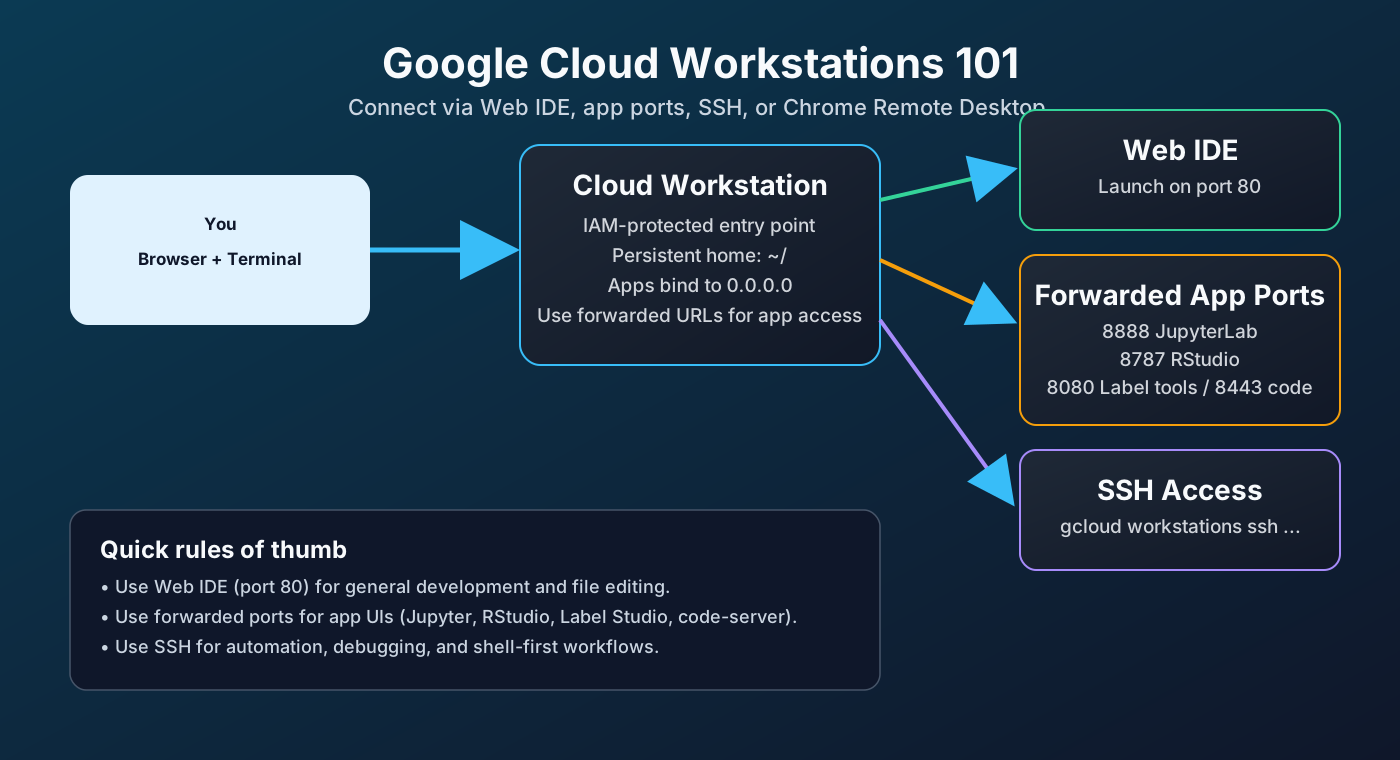
What this guide helps you do quickly
- Choose the right connection path: Web IDE, forwarded app ports, or SSH.
- Know when to use Chrome Remote Desktop for full desktop GUI apps.
- Understand what persists across restarts (
~/) and what does not. - Fix the most common startup and port access issues (
503, auth, ADC). - Verify storage access and cloud auth before installing larger tools.
- Cloud Workstations docs: https://cloud.google.com/workstations/docs
- Connect to a workstation: https://cloud.google.com/workstations/docs/connect-to-workstation
- Port forwarding: https://cloud.google.com/workstations/docs/port-forwarding
- Manage configurations: https://cloud.google.com/workstations/docs/manage-configuration
- Troubleshooting: https://cloud.google.com/workstations/docs/troubleshooting
- Cloud Storage authentication: https://cloud.google.com/storage/docs/authentication
Option A: Connect from the Cloud console (recommended)
- Open Cloud Workstations in Google Cloud Console.
- Select your workstation.
- Start it if needed.
- Click Launch to open the web IDE.
Option B: Connect with SSH
If you prefer terminal-only access, use the Google Cloud CLI.
General flow:
# 1) ensure gcloud is authenticated
gcloud auth login

# 2) start workstation (if stopped)
gcloud workstations start WORKSTATION_ID --region=REGION --cluster=CLUSTER_ID --config=CONFIG_ID

# 3) open SSH session
gcloud workstations ssh WORKSTATION_ID --region=REGION --cluster=CLUSTER_ID --config=CONFIG_ID
Use the official connect guide above for exact command variants in your environment.
Option C: Connect to app ports (Jupyter, RStudio, Label Studio, etc.)
After launching the workstation, open the forwarded port URL from the Workstations UI.
8888JupyterLab8787RStudio Server8080Label Studio / annotation tools8443code-server
If you get 503, wait 30-120 seconds and check service status/logs.
Console menu options explained
In the workstation menu, you may see options like these:
- Start
Starts the workstation VM/container if it is stopped. - Launch on port 80
Opens the default workstation web IDE endpoint (port 80). Use this for normal IDE access. - Connect to web app on port...
Lets you open a specific app port (for example8888,8787,8080,8443). Use this when your app is already running. - Port forwarding...
Shows/manages forwarded ports and links. Useful when you need to discover URLs, verify mappings, or troubleshoot access. - Connect using SSH...
Opens SSH access instructions/flow for terminal-based connection.
Rule of thumb:
- Use Launch on port 80 for IDE work.
- Use Connect to web app on port... for app UIs.
- Use SSH for shell-first workflows, service debugging, and scripting.
1) Authentication model
Cloud Workstations web access is protected by IAM. Most local services behind forwarded ports do not need separate external auth setup.
2) Persistence model
Only your home directory (~/) persists reliably across restarts. Install scripts in this repo store data/config in persistent paths.
3) Port forwarding model
Services should bind to 0.0.0.0 and then be accessed through Workstation forwarded URLs.
Common ports in this repo:
8080Label Studio / annotation tools8443code-server8787RStudio Server8888JupyterLab
Some services autostart at boot; others are started on demand. If a port shows 503 immediately after restart, wait 30-120 seconds and check service status/logs.
Google Cloud Storage (recommended: gcloud storage)
Manual Google auth (if needed)
If auth is missing or expired, run:
# user auth for gcloud CLI
gcloud auth login --no-launch-browser

# application default credentials (used by SDKs/tools)
gcloud auth application-default login --no-launch-browser
Quick verification
# verify auth and project context
gcloud auth list
gcloud config get-value project

# test GCS access
gcloud storage ls gs://YOUR-BUCKET/ | head
# list bucket contents
gcloud storage ls gs://YOUR-BUCKET/

# copy file to bucket
gcloud storage cp local_file.csv gs://YOUR-BUCKET/path/

# copy folder recursively
gcloud storage cp --recursive ~/data gs://YOUR-BUCKET/data/

# sync local folder -> bucket folder
gcloud storage rsync ~/data gs://YOUR-BUCKET/data --recursive
gsutil equivalents (still widely used)
# list bucket
gsutil ls gs://YOUR-BUCKET/

# parallel copy (faster for many files)
gsutil -m cp -r ~/data gs://YOUR-BUCKET/

# sync local folder -> bucket folder
gsutil -m rsync -r ~/data gs://YOUR-BUCKET/data
If tools need Google Cloud APIs (gs://, storage SDKs, etc.), configure ADC:
curl -sL https://raw.githubusercontent.com/MichaelAkridge-NOAA/optics-si-cloud-tools/main/scripts/setup_gcloud_adc.sh | bash
For advanced scope needs, run gcloud auth application-default login with explicit scopes.
Use this as a practical command reference for daily workstation usage.
Linux 101 (Quick Essentials)
If you're new to Linux, these are the most useful day-1 commands.
Navigation + files
# where am I?
pwd

# list files
ls
ls -la

# change directory
cd ~/          # go to home
cd ..          # go up one folder

# create/remove folders
mkdir my_folder
rm -rf old_folder
View + edit files
# print file contents
cat README.md

# view first/last lines
head -20 file.txt
tail -20 file.txt

# search inside files
grep -i "label" file.txt
Download files
# download file
wget https://example.com/file.sh

# or with curl
curl -L -o file.sh https://example.com/file.sh
Process/session basics
# show running processes
ps aux | head

# kill process by name
pkill -f jupyter

# use tmux for persistent terminal sessions
tmux new -s work
tmux attach -t work
Zip and unzip
# zip a folder
zip -r archive.zip my_folder/

# unzip
unzip archive.zip
Permissions and executable scripts
# make script executable
chmod +x script.sh

# run script
./script.sh
Command history tips
# show command history
history

# show last 50 commands
history 50

# search command history
history | grep docker

# rerun previous command
!!

# rerun command by history number
!123
Optional: append history across sessions (add to ~/.bashrc):
shopt -s histappend
PROMPT_COMMAND='history -a'
Local file operations
# copy/move files
cp source.txt dest.txt
mv old_name.txt new_name.txt

# copy folders recursively
cp -r data/ backup_data/

# check sizes and free space
du -sh ~/data
df -h
Compress / archive data
# create tar.gz archive
tar -czf dataset_backup.tar.gz ~/data

# extract archive
tar -xzf dataset_backup.tar.gz
workstation_health.sh
workstation_cleanup.sh --dry-run
workstation_backup.sh list gs://YOUR-BUCKET/PATH
503 on forwarded port
- Service may still be starting
- Verify process/status commands
- Check service logs
GCS access fails
- Confirm ADC setup
- Confirm bucket IAM permissions
- Re-auth if tokens expired
Service works after SSH only
- Check autostart method and restart scripts
- Run Data Science Stack or Dev Stack codelab
- Configure ADC if using cloud data
- Add backup + health checks for long-running environments